Infographic - Evolution of Web

Interesting infographic on the evolution of web technologies and the browsers.

Only Opera looks like it has gone so many changes in the interface.
And Chrome is the one which has gone from v1 to v13 in just 3 years and still looks the same.

And did HTML5 Canvas came in 2004!!!

Why is chrome OS listed separately?

Check the site here

Opera - Single Key Shortcuts

Recently while surfing with Opera I found that you can operate tabs via the numeric keypad also.

Like 1 to switch for previous tab, 2 for next tab and so on. And it's snappy too.

I dug into Settings > Preferences > Advanced > Shortcuts > Keyboard Shortcuts but could not find the shortcuts I was searching for.

Then I noticed this checkbox called Enable single key shortcuts and that was it.

So I went to help and found that there are more of such single key shortcuts.

I felt like I found an Easter Egg in Opera. Don't know if others know about this.

Complete list of Single Key Shortcuts for Opera can found @ 
http://help.opera.com/Windows/11.50/en/keyboard.html#single-key

Which other browser offers such single key shortcuts???
 

User CSS for Blogger [Opera]

Google always has the habit of ignoring support for other browsers and making the web user friendly.

Now it's the time for new design of Draft in Blogger.

As you can see here some things are not displayed correctly on Opera but displayed correctly on IE.


So, I created a User CSS to fix these problems on Opera - blogger.css

About Me

User CSS for Google+

Userstyle CSS file to make Google+ more denser.

Changes to Google+ interface using this style:
- Top Nav bar, Google+ bar, left & right sidebar are floating [Fixed location]
- Google+ bar is shrunk
- Background color for sidebar same as Google+ bar
- Left sidebar: Hidden welcome note, removed profile image and link
- chat panel height is fixed with scrollbars
- Right sidebar: Removed suggestions
- Added bottom border to Top Nav bar to match the Opera menu

Link: google.user.css

This User CSS has been tested on Opera, Firefox, IE

Check User CSS > Using Opera's "Site Preferences" on How to install User CSS for site

Google+ after applying this style


[This userstyle is based on userstyle by corylulu]

Que: Does anyone know how to enable the notification bar for Google+ as Google does not support Opera
Tried changing the browser identification but does not work properly.

Connect me on http://gplus.to/nimesht. About Me

Opera - Send (G)Mail from search bar

You can reach GMail compose window directly from Search bar or even address bar.

To do this, you will have to configure one Search Engine which will act as a redirector and show you the GMail compose window with the email address you used to use this search Engine.

Steps to create this:

- Click on Settings -> Preferences or press keys Ctrl + F12 to bring up the Preferences dialog box
- Switch to tab 'Search'
- Click on button 'Add' to add a new Search Engine
- Fill the values as below:
  > Add some name for Search Engine. I've named it as GMailTo
  > add a keyword to use it from Address bar
  > Add the Address as below 
https://mail.google.com/mail/?view=cm&fs=1&tf=1&source=mailto&to=%s


You can use it in 3 ways:
> Select the above search engine and type the email address in search box and hit enter/return key
> type the keyword, space, the email address in address bar and hit enter/return key
> If using a email from a web page, select the text, right click and select Search with (above) search provided

I hope you find this cool to use with Opera

~Taken from FF Addon (G)mailto:

Beauty of Opera

I'm amazed by the tiniest features of Opera which I fail to see in other major browsers.

Here I will showcase the beauty of the feature called "Server Name Completion". Using this feature you do not need to type the whole address for the site you want to visit.

If you type just the site name, it automatically checks for the prefixes and sufixes and take you to that site.

Like typing google/ will take you to http://www.google.com (or your local google domain), so you are saved by typing "http://www." and ".com"

The Same can be achieved by using Ctrl + Enter, but this would only for site home pages only.

For sub-sites or sub-domains you can use this method.

Typing google/mail will take you to https://mail.google.com/mail/u/0/?shva=1

More examples:
google/mail
google/voice
google/reader
facebook/friends
facebook/<profile_name>
opera/addons
yahoo/search
yahoo/mail
delicious/<profile_name>

You can access the settings for this feature from Preferences -> Advanced -> Network -> Server Name Completion.

You may need to change the order of suffixes to suit your needs. By default whenever I install opera it shows .co.in as the first in order which I have to change it to .com as first as most of the sites I visit are .com sites.

Opera Help on this topic

Opera Extension Toolbar

If you are using too much extensions which place buttons on your toolbar like this,


you can shift the extension buttons to take their own space as a separate toolbar, by adding wrapper at the end of the toolbar


To do this:
- right click on toolbar
- Select Customize -> Appearence
- Goto Buttons tab
- Select spacers category
- and drag the wrapper button to the toolbar
- Click Ok
- Done

You can also enable the text on the extensions like this :D

Opera Wallpapers

Wallpapers made by me for Opera Community.
Harmonica Barcoded Red & White Blue Simple

You can find lots of other Opera wallpapers here

Opera Extensions

Last Month Opera (my favourite browser) unveiled the next version Opera 11 alpha with the option of using extensions with it, which was long missing in Opera.

This is a boon to opera developers to show the creativity and take the browser the next level.

And I also managed to develop few extensions looking at the other ones.

My first extension for GMail has already crossed 10000+ downloads. (Thanks everyone for using and appreciating my work)
Both the extension GMail and Google Reader are very basic extension which is only loading the pages which are primarily designed for iOS devices like iPhone and iPad but looks cool on other mobile phone and browser sidebar (web panels) too.

GMail Extension for Opera 11 (iOS Mode)

GMail extension is available here

Update: This extension is now merged with GMail Checker

Google Reader Extension for Opera 11 (iOS Mode)

Google Reader extension is available here

Would like to address few issues reported by users:
  • Select Box not working - Some problem with Opera as it's happening with other widgets also, but keyboard arrows work as a workaround until opera fixes it
  • HTML Version - Reclick on button to load the correct page
  • Hide panel - Click anywhere outside the panel to hide it. Clicking on toolbar button will reload the panel.
  • Badge/Unread Count... - This is a very basic ext.
I've also managed to add one more extension [Simple ToDoManager] which should soon be published, which is an offline todolist manager written in HTML5 by HTML5rocks.com


Update: This extension is available from here

Also check other extensions by me at 
https://addons.opera.com/en/addons/extensions/?query=nimeshthakkar


Extensions for Opera is a very new thing and a lot needs to be done to compare it with that of Chrome or Firefox.
You can get full list of add-on's available for Opera 11 here

Download Opera 11 release from http://www.opera.com/

Marrying sum1 from Mumbai?

Three men were sitting together bragging about how they had set their new
wives straight on their duties.

The first man had married a woman from Delhi and bragged that he had told
his wife she was going to do all the dishes and house cleaning that needed
done at their house. He said that it took a couple days but on the third day
he came home to a clean house and the dishes were all washed and put away.

The second man had married a woman from Bangalore. He bragged that he had given his wife orders that she was to do all the cleaning, dishes, and cooking. He told them that the first day he didn't see any results, but the next day it was better. By the third day, his house was clean, the dishes was done, and he had a huge dinner on the table.

The third man had married a Bombay girl. He boasted that he told her his house was to be cleaned, dishes washed, the cooking done and laundry washed. And this was all her responsibility. He said the first day he didn't see anything and the second day he didn't see anything but by the third day some of the swelling had gone down so he could see a little out of his left eye!

Learn Excel from the Expert - Online

Want to Learn Excel Online, from the experts.
Check how to join the Excel School on PHD (Pointy Haired Dilbert).


A great site for every kind of Excel users. From the beginners to the Pro.
Everyone will find something here.

A funny interview

Officer : What Is Your Name ?
Candidate : M P. Sir
Officer : Tell Me Properly
Candidate : Mohan Pal Sir

Officer : Your Father's Name ?

Candidate : M P. Sir
Officer : What Does That Mean ?
Candidate : Manmohan Pal Sir

Officer : Your Native Place

Candidate : M P. Sir
Officer : Is It Madhya Pradesh ?
Candidate : No, Munnur Pal Sir

Officer : What Is Your Qualification?

Candidate : M P. Sir
Officer : (Angrily) What Is It ?
Candidate : Metric Pass **Sir**

Officer : Why Do You Need A Job ?

Candidate : M P. Sir
Officer : And What Does That Mean ?
Candidate : Money Problem Sir

Officer : Describe Your Personality

Candidate : M P. Sir
Officer : Explain Yourself Clearly
Candidate : Magnanimous Personality Sir

Officer : This Discussion Is Nowhere, You May Go Now

Candidate : M P. Sir
Officer : What Is It Now
Candidate : My Performance....?
Officer : Mp !!!
Candidate : What Is That Sir..?

Officer : Mentally Puncture**

P(Pause) and W(Wait) Options in CellPhone

The Pause (p) and Wait (w) options are available in every cellular phone, but how many people know about it?How many use it?

P stands for Pause used for 3 Second Pause before dialling the next number.

W stands for wait used for an input to dial the next number.

If you already know what number you want to dial, plus an extension for the IVRS systems, or the EPBX system, you can make good use of these options.

I mean, before making a call or in the contacts itself, you can add the ext no.

e.g. Calling the no 12345 and then dialing the no 123.
It would go like this, 12345p123 (for pause) and 12345w123 (for wait).

After the call gets connected, there will be a 3 sec pause (where p is placed in the no) and then the no will automatically get dialled.
For Wait option, it will prompt you if you want the phone to dial the next no.

You can use this for checking the reservation system, or checking your voicemail and many other things. This can be used with and IVRS system and can save on your time and money.

Just give it a try and let me know what do you think about it.

Will you use it?

Note: Every phone is unique. Some may have this as shortcut on * or # button using multiple press or long press or may have it under options. Check your phone manual for how to get these.

Why can’t I create a folder in Windows with the following names CON, PRN, AUX, NUL, LPT1, LPT2, COM1, COM2....???

What Why can’t I create a folder in Windows with the following names CON, PRN, AUX, NUL, LPT1, LPT2, COM1, COM2....???

Why You aren't allowed to create a folder with names that are the same as the ones that have been used for various devices on a PC since DOS era. 
In DOS, "CON" refers to "Console", "PRN" refers to "Printer" and LPT1, LPT2, COM1, COM2 refers to different communication ports.
How There happens to be a workaround for this. To create a folder named "CON" in Windows,
open Command Prompt and type the following: mkdir \\.\D:\CON (This will create a folder named CON in the D drive)
You may be able to view the folder using Windows Explorer, but you will not be able delete it or Copy/Paste files into it.
But yes, you can create new files in it.
To delete this folder, type the following code in command prompt. rmdir \\.\D:\CON

Alternate keyboard shortcuts for Windows Security functions

What Alternate keyboard shortcuts for Windows Security functions (Ctrl + Alt + Del)

How

1] Lock Computer
What do you normally do to lock the running windows session?
Press the key combination Alt + Ctrl + Del, and then select "Lock Computer"
In Windows XP, you can do the same thing, just by pressing the key combination: (win key)+ L

2] Task Manager
You can execute Task Manager by either of the following options:
1) Press the key combination Alt + Ctrl + Del, and then select ‘Task Manager’
2) Right Click on Taskbar and select ‘Task Manager’
3) Press the key combination Ctrl + Shift + Esc

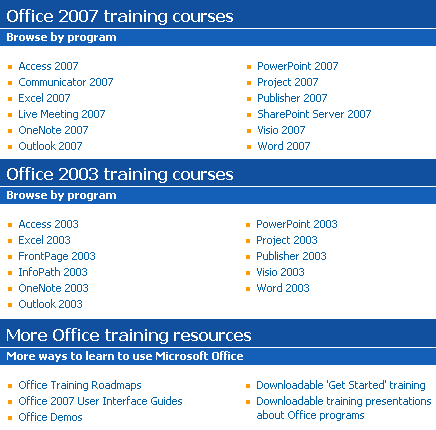
Free self-paced online training courses by Microsoft

Training Courses Offered as below:


To check out the Trainings visit:
http://office.microsoft.com/en-us/training/FX100565001033.aspx

Happy New Year Greetings

Joke: Drive-in ATM

Read this long time ago... but good to laugh on it once again.

A sign in the Bank Lobby reads:

"Please note that this Bank is installing new Drive-through teller machines enabling customers to withdraw cash without leaving their vehicles. Customers using this new facility are requested to use the procedures outlined below when accessing their accounts.

After months of careful research, MALE & FEMALE procedures have been developed.
Please follow the appropriate steps for your gender."


MALE PROCEDURE:
1.  Drive up to the cash machine.
2. Put down your car window.
3. Insert card into machine and enter PIN.
4. Enter amount of cash required and withdraw.
5. Retrieve card, cash and receipt.
6. Put window up.
7. Drive off.


FEMALE PROCEDURE:
1. Drive up to cash machine!
2. Reverse and back up the required amount to align car window with the machine.
3. Set parking brake, put the window down.
4. Find handbag, remove all contents on to  passenger seat to locate card.
5. Tell person on cell phone you will call them back and hang up
6. Attempt to insert card into machine.
7. Open car door to allow easier access to machine due to its excessive distance from the car.
8. Insert card.
9. Re-insert card the right way.
10. Dig through handbag to find diary with your PIN written on the inside back page.
11. Enter PIN.
12. Press cancel and re-enter correct PIN.
13.  Enter amount of cash required.
14. Check makeup in rear view mirror.
15. Retrieve cash and receipt.
16. Empty handbag again to locate wallet and place cash inside.
17. Write debit amount in check register and place receipt in back of checkbook.
18. Re-check makeup.
19. Drive forward 2 feet.
20. Reverse back to cash machine.
21. Retrieve card.
22. Re-empty hand bag, locate card holder, and place card into the slot provided.
23. Give dirty look to irate male driver waiting behind you.
24. Restart stalled engine and pull off.
25. Redial person on cell phone.
26. Drive for 2 to 3 miles.
27. Release Parking Brake.

Blogged with the Flock Browser

Printing: Tips & Tricks - IV

Default Printer

For Printing, Instead of going to File -> Print, there is also a Print button on the toolbars in most of the applications. Few Applications like Adobe show Printing Dialog Box, while some applications like Microsoft Office directly prints the current document to the Default Printer.

Be careful when using this button, as you may accidentally hit this button without the need of printing, and lots of pages are printed without your knowledge.

There even may be situations where you print the document and print does not come out as per your expectation.

In such cases, you can use the Adobe Printer/Distiller or Microsoft Office Document Image Writer as these printers print the document in a PDF or MDI format which looks exactly as you would get on the hard copy.

To avoid such situations, you can set these Printers as the Default Printer and take the hard copy only when you are really want it.

TO change the default printer, go to Start -> Control Panel -> Printers and Faxes -> Select the Desired Printer -> Right Click and Select Set as Default Printer.


Check your document before hitting that Print button

  • Whether the document contains errors, so as to avoid reprinting and wasting a whole bunch of pages.

    You can use Proofing Tools (F7) for this.

  • Whether the margins are set correctly, to print exactly how you need it to appear on paper.

    You can use Page Setup, Print Preview, Page-Break View (in Excel) OR Print it to PDF/MDI and verify.

  • Whether the part of the document is being printed, is all what you need, or you can do with a small section of it.

    You can use Selection property of Print Range, Print Area (in Excel), OR Copy it to Notepad and then Print.

  • Whether the document really needs to be printed.

    If it is just few lines, then why can't you write it on your Notepad, instead of Printing?

  • When was the last time when you wrote it down instead of printing?

    OR Can't you just use it electronically as it is, I mean the Soft Copy itself.

    You can make use of the available functions, like Find, Comment, Highlight.

For original articles go to the below links;

http://lifehacker.com/software/feature/printing-power-tips-171578.php
http://www.softwarepro.com/articles/exl_printing.htm


Printing: Tips & Tricks - III

Keep It Simple

Many ink jet printers offer a draft or fast mode. If you aren't too concerned with print quality, draft mode may not only save you time, but ink too.

Switching from color mode to black and white can also add to your savings.


Print Area [In Excel]

By default, an entire worksheet is printed in Excel unless you indicate a specific print area. To limit the printed area,

1) Highlight the cells you want to print,

2) Choose File > Print Area > Set Print Area.

The new print area remains in place until changed.

To clear the current print area, pick File > Print Area > Clear Print Area.


Fit to Page [In Excel]

Unlike Word documents, content is not limited by the paper size or orientation. A worksheet can be split into as many pages as needed to display the content but sometimes you might want to fit all data into one page by height or width. To do this, first choose File > Page Setup, set margins to the smallest size that will work for your layout. Change paper size and orientation if you want. Next, select the Page tab and under the Scaling category pick Fit to For instance, if you want to fit all data columns on one lengthwise page, change orientation to landscape and choose Fit to 1 page wide by 999 pages tall. Try it, this setting won't stretch pages to 999 pages but will make sure that a low value won't accidentally shrink the pages to a much smaller size. Another option under Scaling is to adjust the size to a percentage of the normal size.

To be Continued...